
Adding the tawk.to widget to NeoWeb
The instructions below are for desktops and laptops only.
Add the tawk.to chat widget to your NeoWeb website using NeoWeb's built-in integration. Simply copy your widget code from tawk.to and paste it into the Tawk.to integration in your NeoWeb website settings—no code editing or theme changes required.
Once you save your changes in NeoWeb, the widget will be added to your website.
Once you save your changes in NeoWeb, the widget will be added to your website.
Copy your tawk.to widget code

2. Click Administration on the left navigation bar.

3. Click Chat Widget in the left submenu.

4. Copy the Widget Code.

Note: Copy the entire Widget Code. NeoWeb requires the complete code snippet, not just your Property ID or Widget ID.
Add the widget to NeoWeb
1. Log in to your NeoWeb account.
2. Open the workspace or website you want to update.
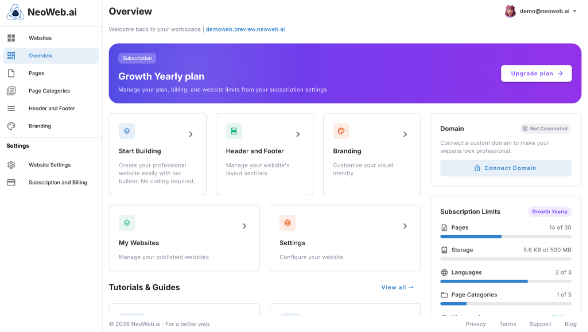
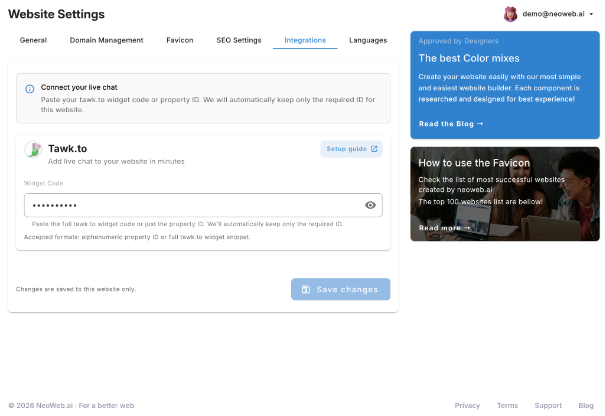
6. Paste the widget code into the Widget Code field.
7. Click Save changes.
After saving, NeoWeb will add the tawk.to widget to your website.
Additional considerations
- If you update your tawk.to widget settings, such as its appearance or behavior, those changes are applied automatically. You do not need to paste the widget code into NeoWeb again.
- If your widget does not appear after installation, confirm that you copied the complete Widget Code and saved your changes in NeoWeb. You may also need to clear your browser cache or wait a few moments for the changes to appear.
- If you manage multiple properties in tawk.to, make sure you copied the Widget Code for the correct property before adding it to NeoWeb.
Related guides
An introduction to Integrations in tawk.to
Modifying your widget content
Changing your widget language
Customizing the widget header and body cards
Change how the widget behaves on your site
Changing the widget position
Changing the content on the minimized widget
Enabling the Attention Grabber
Using the Pre-Chat Form
Modifying your widget content
Changing your widget language
Customizing the widget header and body cards
Change how the widget behaves on your site
Changing the widget position
Changing the content on the minimized widget
Enabling the Attention Grabber
Using the Pre-Chat Form
If you have feedback about this article, or if you need more help:
- Click the green live chat icon
- Schedule a call with us
- Visit our community